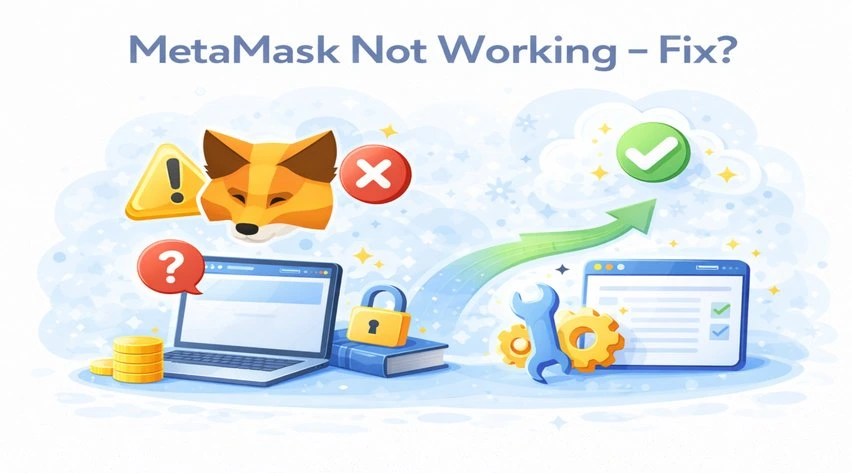

MetaMask plays an essential role in the Web3 ecosystem. Millions of users rely on the services of this wallet for their daily crypto transactions, NFT trading, and much more. However, some issues might arise during that. On a few occasions, the wallet stops connecting, the transaction gets stuck, or the balance amount disappears.
Now these issues might be serious, though this does not signify any permanent loss. In many cases, the quick and simple fixes resolve the issues quickly. All you need is the right approach.
The comprehensive guide here explains common MetaMask errors in 2026, the reasons these issues occur and their fixes. All the details you need to know come from the official support sources. Read till the end to fix your MetaMask not working issue.
Why is MetaMask not working?
Before we get started with the fixes to resolve your wallet not working issue, let’s understand the root causes of those issues. Understanding this will make the troubleshooting steps faster and more effective.
MetaMask works with both browsers and blockchain networks. Thus, even a minor issue can interrupt the smooth functioning of the wallet.
Below is the list of the most common reasons for non-working:
- Use of an outdated browser or the MetaMask extension
- Incorrect network
- RPC configuration
- Pending or failed transactions
- Corrupted Cache or stored data
- Issues with other browser extensions
- Temporary network or blockchain congestion
Note: Sometimes, there can be more than one issue simultaneously, and this might make it harder for the users to identify the issue.
Common MetaMask Errors and Fixes
Let’s get to the most-awaited topic of the MetaMask issues and their fixes.
MetaMask is not connecting to dApps
You begin by opening a website; however, MetaMask fails to connect. This issue is common with DeFi platforms and NFT marketplaces.
The failure in connection is usually because of the mismatch between the dApp and the wallet.
Common Reasons:
- Selected the wrong blockchain network
- Wallet not connected properly
- Request blocked by browser
How to fix it?
- The first step is to switch to the correct network (such as Ethereum, Polygon, and BNB chain).
- Try reconnecting with your wallet again, but manually.
- Now, refresh the page.
- Furthermore, disable the other wallet extensions temporarily.
So, if the issue persists, switch to another browser. As of now, Chrome and Firefox are the most stable and trustworthy options.
MetaMask Transactions Stuck or Pending
This issue creates the most frustration. You send a transaction, but it stays pending for a long time.
In most cases, the network does not process it due to low gas fees.
Main reasons:
- Gas fee set too low
- Heavy network congestion
- Nonce conflicts
Fix it quickly:
- Use the “Speed Up” option with higher gas fees.
- Or cancel the transaction if possible.
- Wait for network congestion to reduce
If you see errors like “replacement transaction underpriced,” increase the gas fee by at least 10–15%.
MetaMask Balance Not Showing
This problem causes panic. You open your wallet, and your funds seem missing.
However, the issue usually relates to display errors, not actual loss.
Why does this happen?
- Wrong network selected
- Token not added to wallet.
- RPC connection issue
Steps to fix:
- Switch to the correct network.
- Import the token manually using the contract address.
- Check your wallet on a blockchain explorer.
Remember this: your crypto lives on the blockchain, not inside MetaMask. So your funds stay safe in most situations.
MetaMask Not Opening or Crashing
Sometimes MetaMask fails to load or crashes repeatedly. This issue usually comes from your browser environment.
Possible causes:
- Outdated extension version
- Corrupted browser cache
- Conflicting extensions
What you should do:
- Update MetaMask immediately
- Clear cache and cookies
- Restart your browser or device.
- Disable ad blockers or VPN extensions
Small fixes like restarting often solve the issue faster than expected.
“MetaMask Encountered an Error”
This message appears after updates or internal glitches. It may look technical, but the fix remains simple in most cases.
Common triggers:
- Buggy updates
- Broken local storage
- RPC endpoint failure
How to resolve it:
- Refresh MetaMask
- Clear browser data
- Reinstall the extension if needed.
Before reinstalling, always back up your Secret Recovery Phrase. Without it, you cannot restore your wallet.
Additional Errors and Fixes
Wrong Network or Missing Tokens
Users often think their wallet is empty. In reality, they just view the wrong network.
For example, tokens on Polygon will not appear on Ethereum.
Quick fixes:
- Switch to the correct blockchain network.
- Add custom tokens manually.
- Verify token contract details.
This issue remains one of the most common mistakes among beginners.
Security Warnings or Blocked Transactions
MetaMask sometimes blocks actions or shows warnings. This can feel frustrating. However, these alerts usually protect your funds.
Why warnings appear:
- Suspicious smart contract interaction
- Phishing detection
- Excessive permissions requested
What you should do:
- Review the transaction details carefully.
- Avoid unknown websites
- Revoke unnecessary permissions
Never ignore repeated warnings. They often signal real risks.
Quick Fix Checklist
If MetaMask stops working, follow this checklist first. It saves time and solves most issues quickly.
- Restart your browser
- Lock and unlock MetaMask.
- Update the extension
- Clear cache and cookies
- Check network settings
- Reconnect your wallet
These simple steps fix the majority of problems within minutes.
Advanced Fixes (Use Carefully)
If basic troubleshooting does not work, you can try advanced solutions. However, use them carefully.
Advanced options include:
- Reset MetaMask account (clears transaction history only)
- Switch to a different RPC provider.
- Reinstall the MetaMask extension.
Always take precautions before advanced actions.
Important safety steps:
- Back up your Secret Recovery Phrase
- Double-check wallet access
- Avoid using unknown tools.
These steps protect your funds during troubleshooting.
Security Tips You Should Never Ignore
MetaMask issues sometimes overlap with scams. Therefore, security should always come first.
Follow these essential tips:
- Never share your Secret Recovery Phrase.
- Avoid clicking on random links or pop-ups.
- Verify website URLs before connecting.
- Do not trust unofficial support messages.
Phishing attacks have increased significantly in 2026. So staying cautious matters more than ever.
The Bottom Line!
As a beginner, you might think that MetaMask not working might be a serious problem. Though in most of the cases it is not. The most common reasons for it not working can be a mismatched network, low gas fees, browser conflicts, etc. Thus, whenever you face an error, try out the common troubleshooting measures. And if nothing else works, then move to the advanced fixes. Also, remember to keep your wallet updated and secure. At the end, if there is nothing else you can do to fix your MetaMask not working issue, then reach out to the customer support executive. Never ever trust unreliable sources for help.
Frequently Asked Questions (FAQs)
Why is MetaMask not working today?
There are several reasons why MetaMask might stop working, such as network congestion, use of outdated extensions or browser conflicts.
How to fix MetaMask not connecting to dApps?
Try changing the network, reconnecting the MetaMask wallet, refreshing the page and disabling the other possible extensions.
Why is my MetaMask transaction stuck?
It might be due to low gas fees or heavy network congestion. Click on the “Speed Up” option to increase the gas fees.
Why is the MetaMask balance not showing?
You may be operating on the wrong network, or the tokens purchased may not be added to the balance.